
Learn · Guide 3 of 10
Editing basics
The everyday moves: cutting, trimming, moving clips, transitions and compound clips.
Cut and trim
Pick a tool
A is the select tool. B is the blade: click a clip to cut it, ⇧-click to cut every row at that point. Esc goes back to select.
Split at the playhead
Press S, or ⌘B.
Trim and move
Drag a clip’s edge to trim it, or drag the clip to move it. The timeline scrolls when you drag near its edges. Moves that would overlap another clip are refused when you let go.
Delete, or close the gap
⌫ deletes and leaves a gap. ⇧⌫ () closes it up.
Select and rearrange
Select several clips
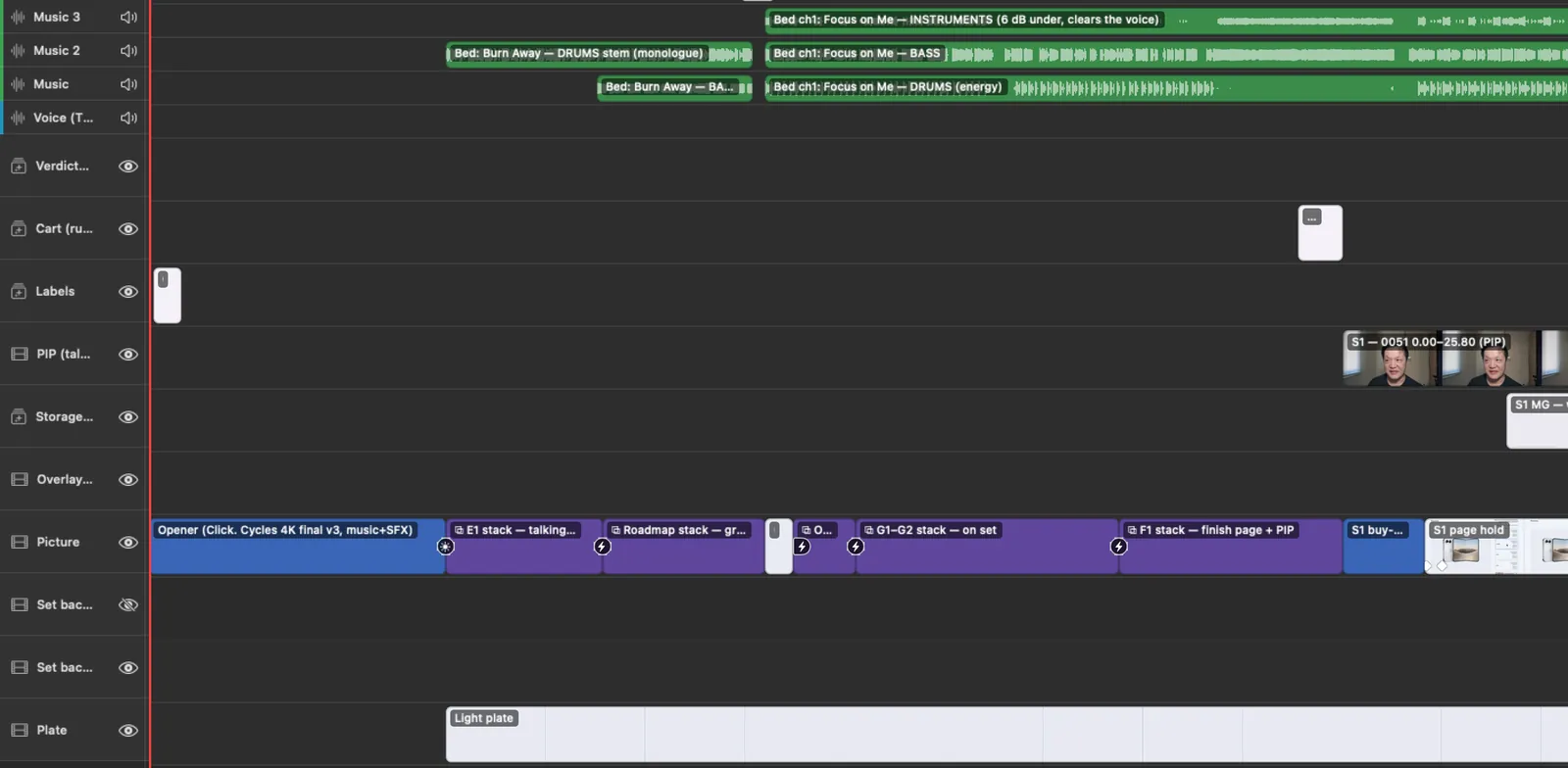
Drag on empty timeline space to box-select (⇧ or ⌘ adds). Click a row’s header to select the whole row. ⌘A selects everything; Esc or ⇧⌘A clears it.
Move them together
Dragging a selection moves every clip by the same amount and the same number of rows. Each clip has to land on a row of its own kind.
Copy and paste, even between projects
⌘C ⌘X ⌘V paste at the playhead, keeping the spacing and rows. It works between two different projects too.
Zoom
⌘+ and ⌘−, pinch, or ⌥-scroll. ⇧Z fits the whole timeline.
Name and tag rows
Double-click a row name to rename it. Right-click a row header to give it a role: Dialogue, Music or Effects. Ducking and loudness use these roles.
Transitions
Open the Transitions pane
⌘5. You get dissolves, fades and dips, wipes, pushes and slides, zooms, spins and blurs, slams, whip pans, shake, light leaks, glitches and flashes.
Drop one on a cut, or on one edge
Drag a tile onto a cut between two clips. Drop it near the start or end of a single clip to make that clip transition in or out over whatever is underneath, which is how graphics fade in. Double-clicking a tile, or ⌘T, adds it at the spot nearest the playhead.
Set the length
Drag the edges of the transition badge. New transitions use the pane’s Default length. Transitions that show both shots at once need spare footage past the cut; if there isn’t enough, HTCUT tells you instead of freezing a frame.
Compound clips
Select clips from any rows and choose ⌥G. They become one clip that moves, trims and transitions as a stack. Double-click it to edit inside; Esc or ⌘[ goes back. ⇧⌘G undoes the grouping.
More timeline tools
- J and L cuts: select the outgoing clip, then Inspector ▸ J / L cut lets the sound lead or trail the picture.
- Sync by sound: select a camera clip and a separate mic recording, then . The selected clip on the lowest video row is the reference.
- Connected clips: keeps a clip riding on its moment through later edits.
Ripple edits across the whole timeline
Removing or inserting time so that every row follows is a command: footage splices, stills and graphics stretch, music beds lose or gain whole beats, and compound clips follow inside. It refuses to cut out speech it can hear unless you add --allow-speech.
$ htcut ripple cut --from 3:10 --to 3:14 --dry-run
$ htcut ripple insert --at 1:05 --dur 2s
$ htcut ripple trim --clip 6cefc281 --end -0.5s
Command only: ripple cut, insert and trim across every row aren’t in the app’s menus yet. Run them yourself or ask Claude.