
Learn · Guide 8 of 10
Shorts
Turn a long video into Shorts, or build one from scratch, and keep your text out from under the Shorts buttons.
Shorts from a long video
Transcribe first
Shorts are picked by what you say, so transcribe the talking parts and tag your voice row Dialogue.
Find the best stretches
, or in the toolbar. HTCUT scores 20–58 second stretches of whole sentences: a hook up front (a question, a number), good pace, few long pauses and a clean ending.
Make it
Pick one. HTCUT creates a new 9:16 project next to yours (
<project>-short-1), with landscape footage reframed to follow the speaker’s face and captions from your transcript. Open it and keep editing.
$ htcut shorts --count 5
$ htcut shorts make 1
$ htcut shorts --from 2:10 --to 2:52
Keep text in the safe area
Show the safe zones
On a vertical project, ⌘' () cycles the safe zones and a mock YouTube Shorts screen over the viewer.
Tell HTCUT where it’s going
In ⌘J, set Platforms to YouTube Shorts. The pre-publish checklist then blocks on text outside the safe area and warns when text overlaps.
Check every frame
Run the checklist (or
htcut preflight). It names the text and how far over it is, with a time to jump to.
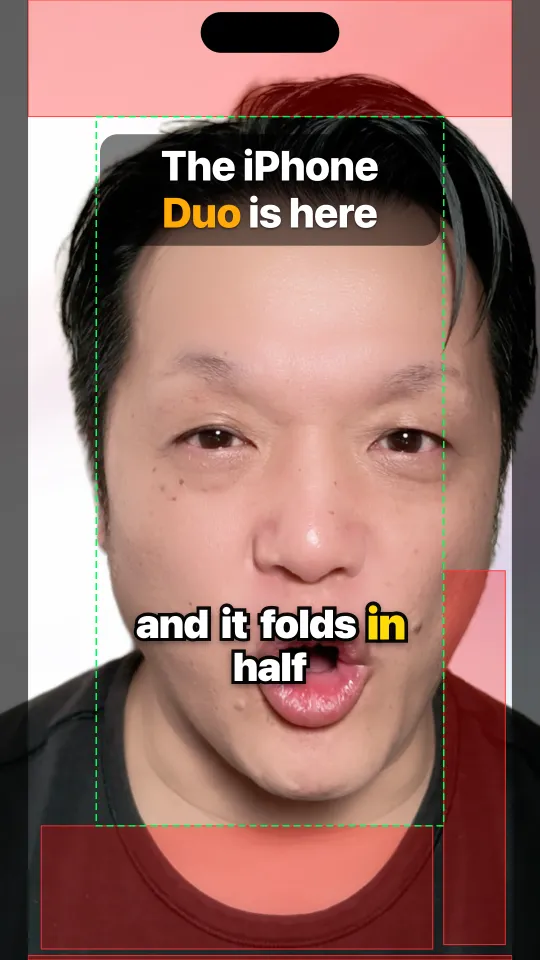
htcut frame 2 --overlay safe: red is under the Shorts interface, the green dashed box is title-safe, and the dark edges are cropped on a phone.$ htcut preflight
BLOCKERS
• Text outside the YouTube Shorts safe area: “The iPhone”
(The iPhone *Duo* is here): 27 px above the top [00:01:00]
• Text outside the YouTube Shorts safe area: “half”
(and it folds in half): 2 px below the bottom [00:01:00]Move the text and run it again until the blockers are gone. Export with the Shorts 1080×1920 pick.