
Learn · Guide 5 of 10
Sound
Record voiceover, clean up and level your dialogue, duck the music under it, and leave the export at YouTube’s loudness.
Record voiceover
Open the recorder
⌥⌘8, or the mic button. Pick your input and watch the meter.
With video
Records from the playhead while the timeline plays, after a 3-2-1. Takes are saved as WAV files in
media/voiceover/and land on a “Voiceover” row. Older takes they cover move to a muted “Takes” row. A take with no real signal (a muted or wrong input) is refused rather than placed.Line by line
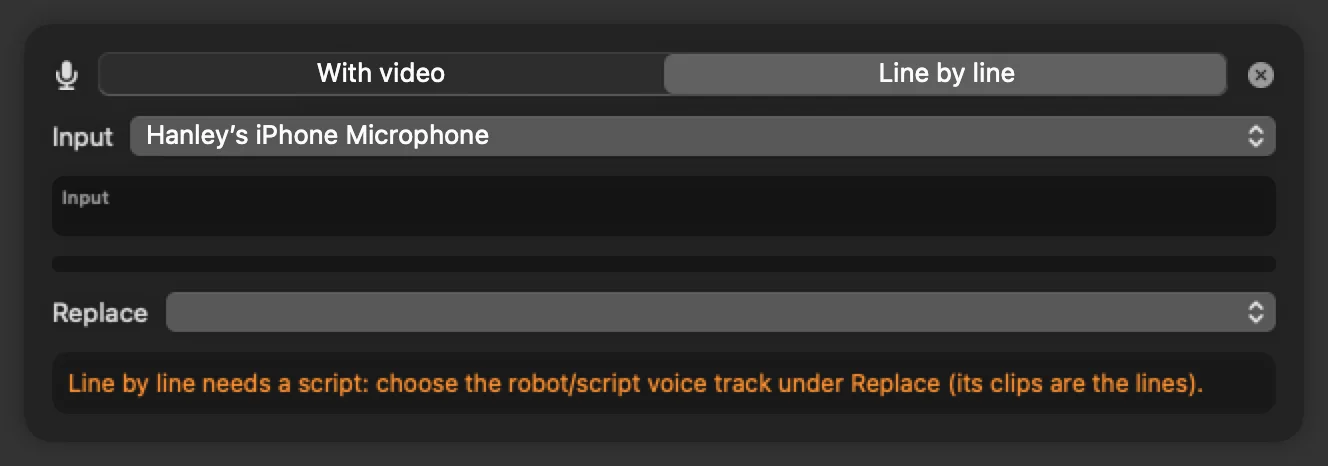
For a scripted voiceover, choose Line by line and pick your script row under Replace. Its clips are the lines. Press R to start, read the line (again if you like), then Space for the next one. ← → ↑ ↓ or a click jump to any line, P plays the read it kept, and Esc stops. The last read of each line is kept, and its first word lands on the line’s spot. A long read pushes later clips along.
Clean up and level
Tag your rows
Right-click each row header and pick Dialogue, Music or Effects. The automatic presets and ducking use these roles.
Reduce noise or enhance the voice
Select one or more clips. In Inspector ▸ Clean-up & loudness, turn on Reduce noise or Enhance voice. Both use Apple’s voice isolation on your Mac; Enhance adds EQ and compression. The preview plays the original until the cleaned copy is ready.
Normalize loudness
In the same section, pick a preset (voice, music under voice, music alone, sound effects, or automatic by row role) and a main level: −14 LUFS for YouTube, −16 for podcasts or −23 for broadcast.
Match one mic to another
When a pickup was recorded further away or on another mic, match its tone to your main take. The inspector shows “Voice matched to…” with a Remove button.
$ htcut audio normalize --role dialogue
$ htcut audio denoise --track Voice --strength 0.6
$ htcut audio match --clip 5af63c3b --to 6cefc281
Command only: you can remove a voice match in the inspector, but making one is a command for now.
Duck the music under speech
⌥⌘D. Music rows dip under speech on Dialogue rows, and under talking-head footage that has a transcript. A dark band on the row shows where it dips. Tune it with nothing selected in Inspector ▸ Project audio, where Duck here and Don’t duck here fix a stretch by hand. To overrule it for one clip, use Inspector ▸ Volume ▸ Ducking.
Music and sound effect picks
Claude can suggest beds or effects from your own library, with length, loudness and tempo, and you choose by ear in Inspector ▸ Alternatives: ▶︎ plays each one in place, ↑ ↓ cycle, and Use swaps it in at matched loudness. Point HTCUT at your folders first:
$ htcut settings musicFolder ~/Music/Beds
$ htcut settings sfxFolder ~/Music/SFX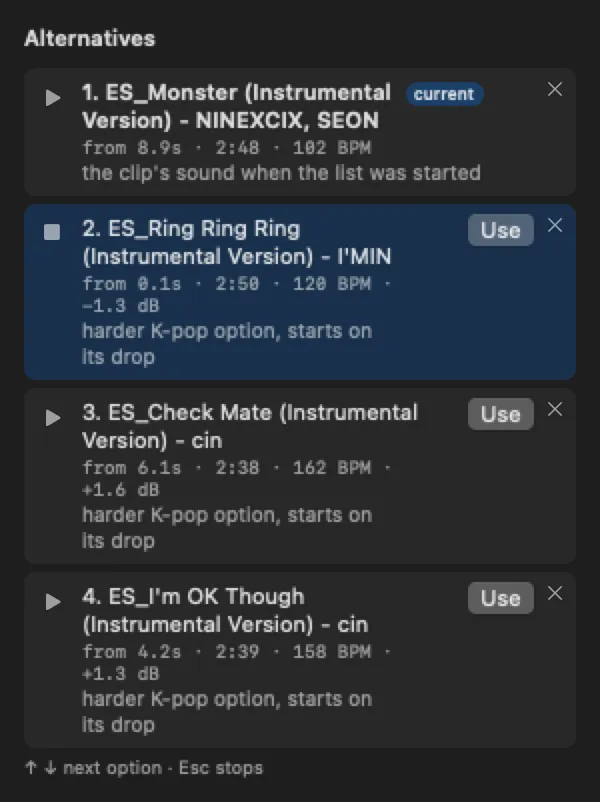
puts a whoosh on whip pans, a hit on slams, a glitch on glitches and a pop on graphic entrances. It takes them from your SFX folder, with one subfolder per kind; htcut sfx categories lists the folders it expects.
Master loudness
Every export prints its integrated loudness and true peak, and the gain that would fix them. Set a gain on the whole mix, or a true-peak limiter that keeps every export under −1 dBTP:
$ htcut loudness-check export/final.mp4
$ htcut master --gain -1.5
$ htcut master --limit -1
Filming pickups
⌥⌘T opens a teleprompter window with each line and its stretch of the timeline. Show on phone puts it on your phone over your Wi-Fi with a QR code.